
When I overengineer a home project, my wife always says, “K.I.S.S. — “Keep it simple…sweetheart” (I appreciate it when she pulls her punches.) So, let’s look at a fairly easy way to get Cribl Edge data into Elastic to light up some out-of-the-box dashboards.
TL;DR
Map event field names to the Elastic Common Schema for best results when sending to Elastic. Use your LLM of choice to make a schema that the Cribl Copilot Editor can use to build a pipeline for you. Tweak and test and start sending data to Elastic.
Step by step
The first step in this journey is Deploying Cribl Edge on Windows. You’ve got a couple options for a one-off installation here, so choose your own adventure between the .msi wizard or PowerShell.
Next, make sure you’ve got the Cribl Edge data collecting Windows Events and sending them to Cribl Stream. We use Cribl HTTP, which is a special destination in Edge and a special source in Stream for this. In my deployment, I have my Windows Event Logs source tile configured to collect Security, Application, and System and it is sent to the Cribl HTTP destination, which will act as a bridge to get my Edge sources into Cribl Stream.
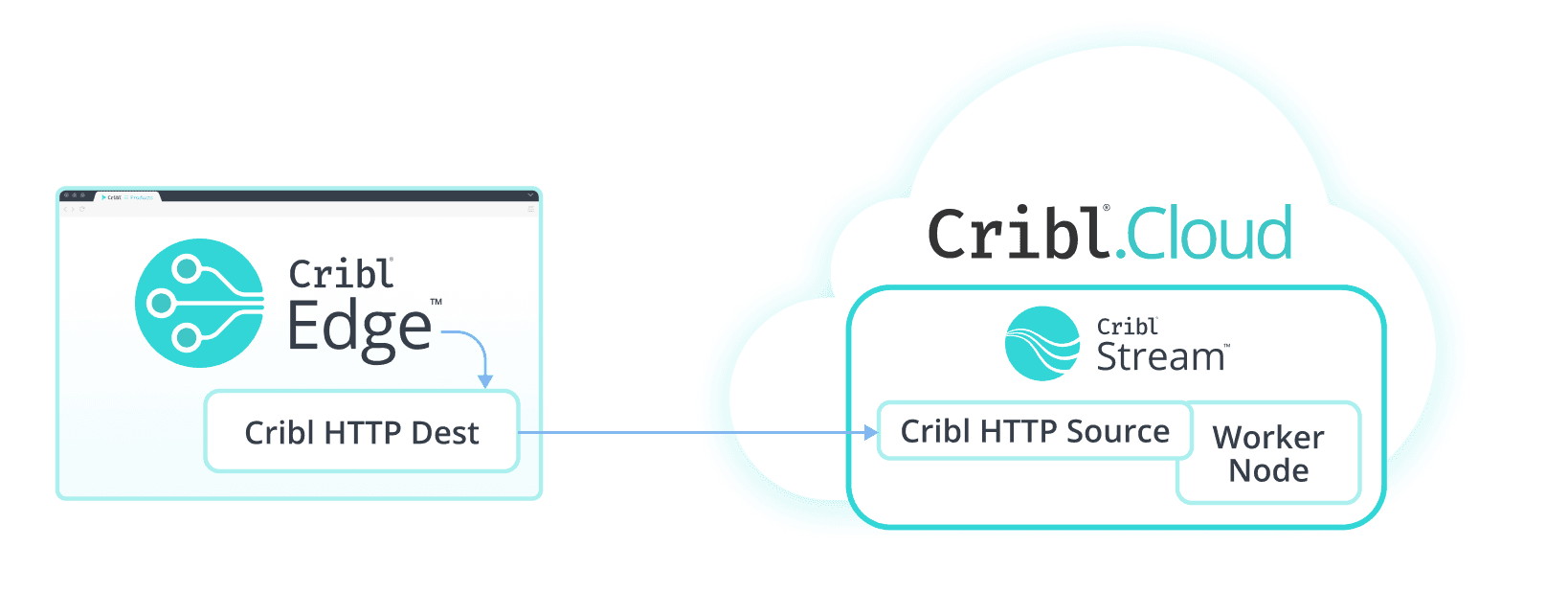
(Cribl HTTP is how to get Cribl Edge data from my laptop into Cribl Stream)
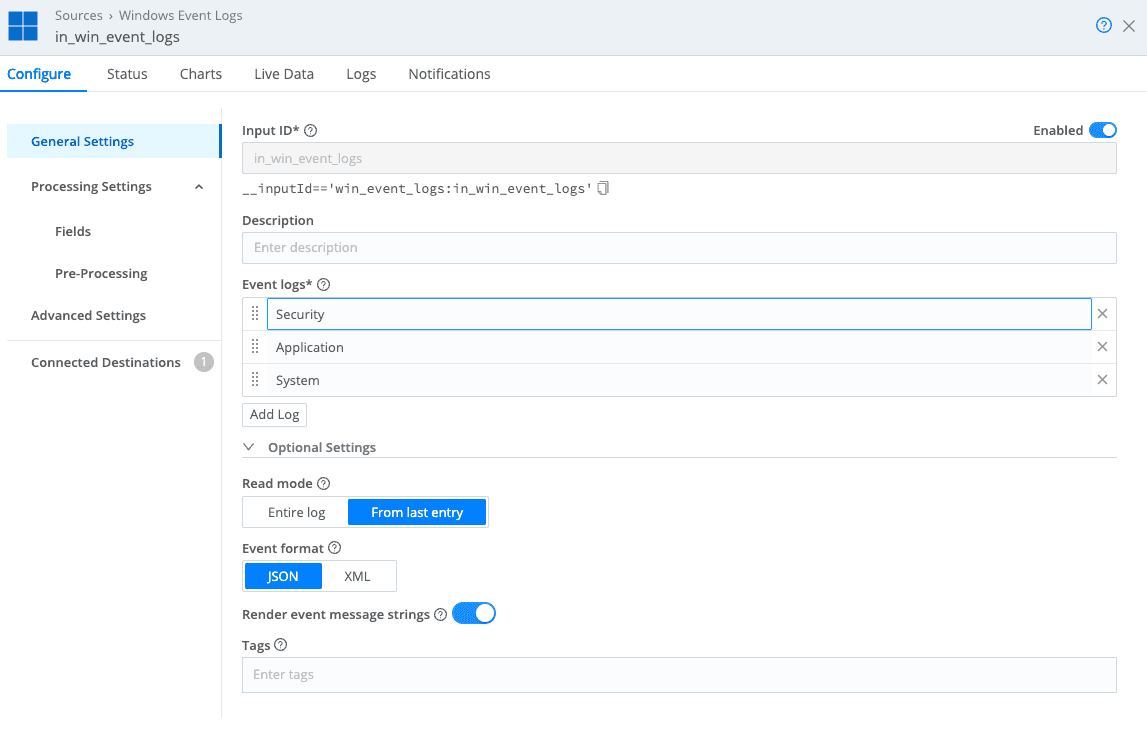
(Windows Event Logs configuration — the Event format is JSON but XML is an option.)
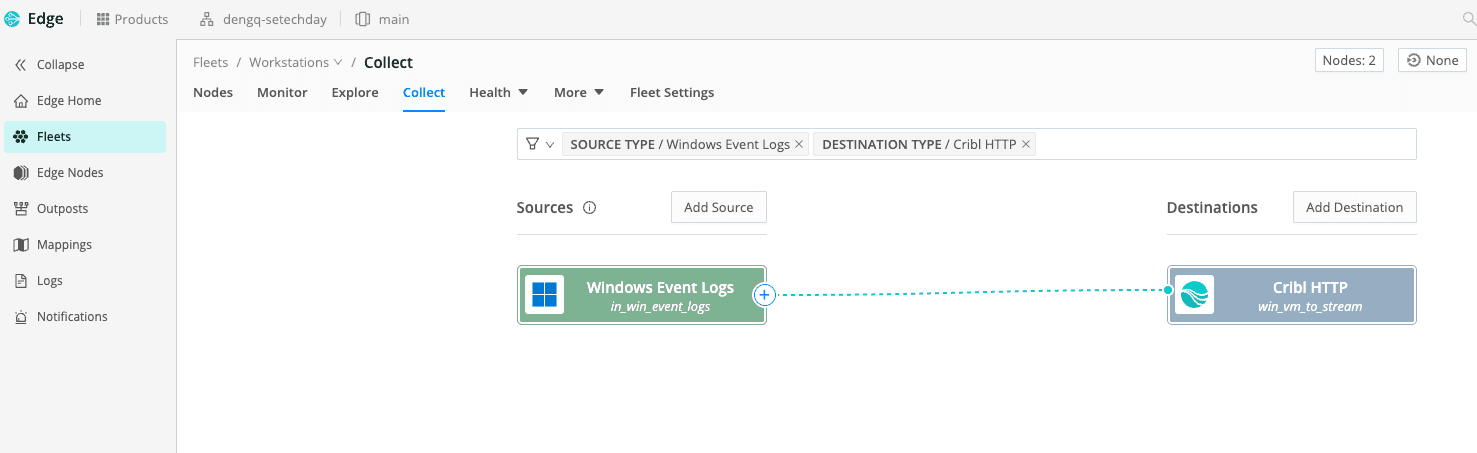
(Quick Connect sending Cribl Edge Windows Event Logs to Cribl HTTP destination)
Now that we have data flowing into Cribl Stream, we need to decide how to send it to Elastic. The best way to use pre-built dashboards and other out-of-the-box content in an Elastic deployment is mapping everything to the Elastic Common Schema (ECS). There are two parts of the Cribl platform that can help us map to ECS.
Cribl has libraries of Knowledge including a Schemas Library.
Cribl has a Copilot Editor that can make use of a schema in the Schemas Library to help you build a pipeline.
Now is time for a detour to whichever LLM is currently your favorite! I used an LLM with a prompt like below to have it create a schema for me. My goal was to have a schema to import into Cribl Knowledge for Copilot Editor to use.
Prompt:
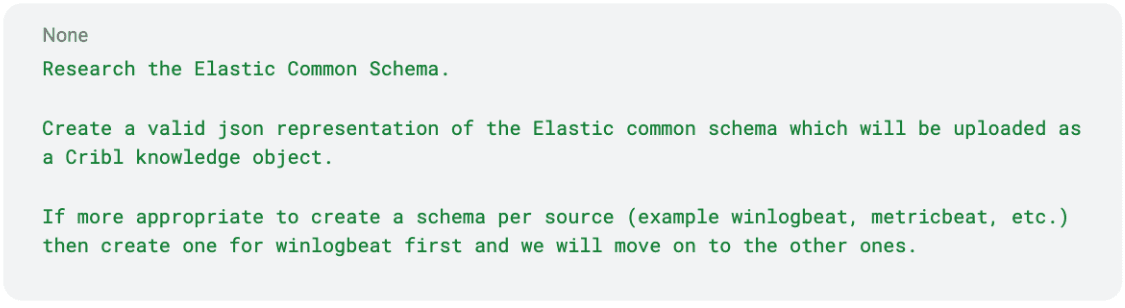
This prompt could definitely be more thorough, but a few minutes later I had a JSON schema ready to import into Cribl. Navigating to Processing > Knowledge inside my worker group, I selected Schemas library, Add Schema and did a quick paste and save (don’t forget to Commit and Deploy changes like these!).
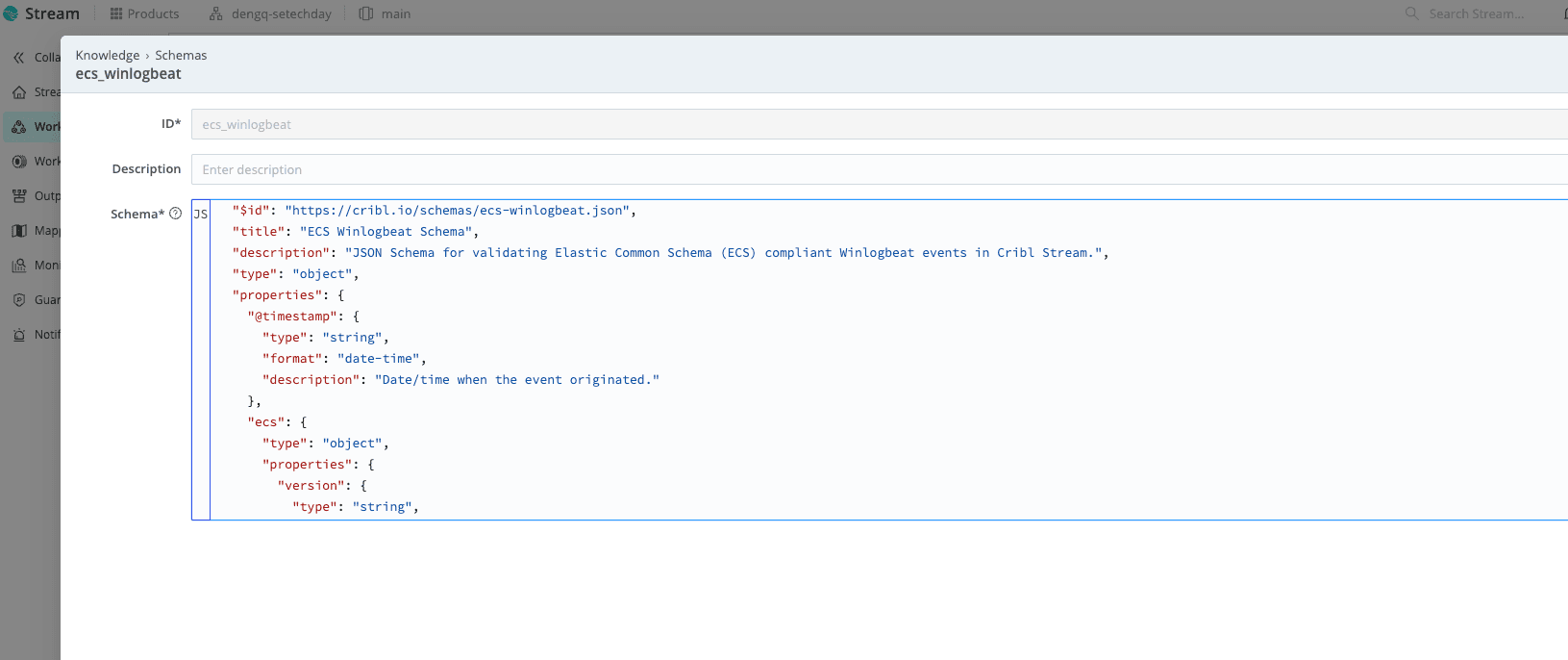
(Snippet of the schema I imported into Cribl.)
Now build a pipeline using Copilot Editor! Just answer a few prompts (the AI is prompting me?!), select a sample file, review the pipeline plan (yes, you can edit the plan), and then test it against your sample data. When prompted about your objective, specify the schema for Copilot Editor. Make sure to select “Convert my input events to a specific target schema like OCSF or UDM,” then select “Pick from our library,” and in the “Select a target schema” drop down, choose Custom > <whatever you named your schema> (I chose my new ecs_winglogbeat schema).
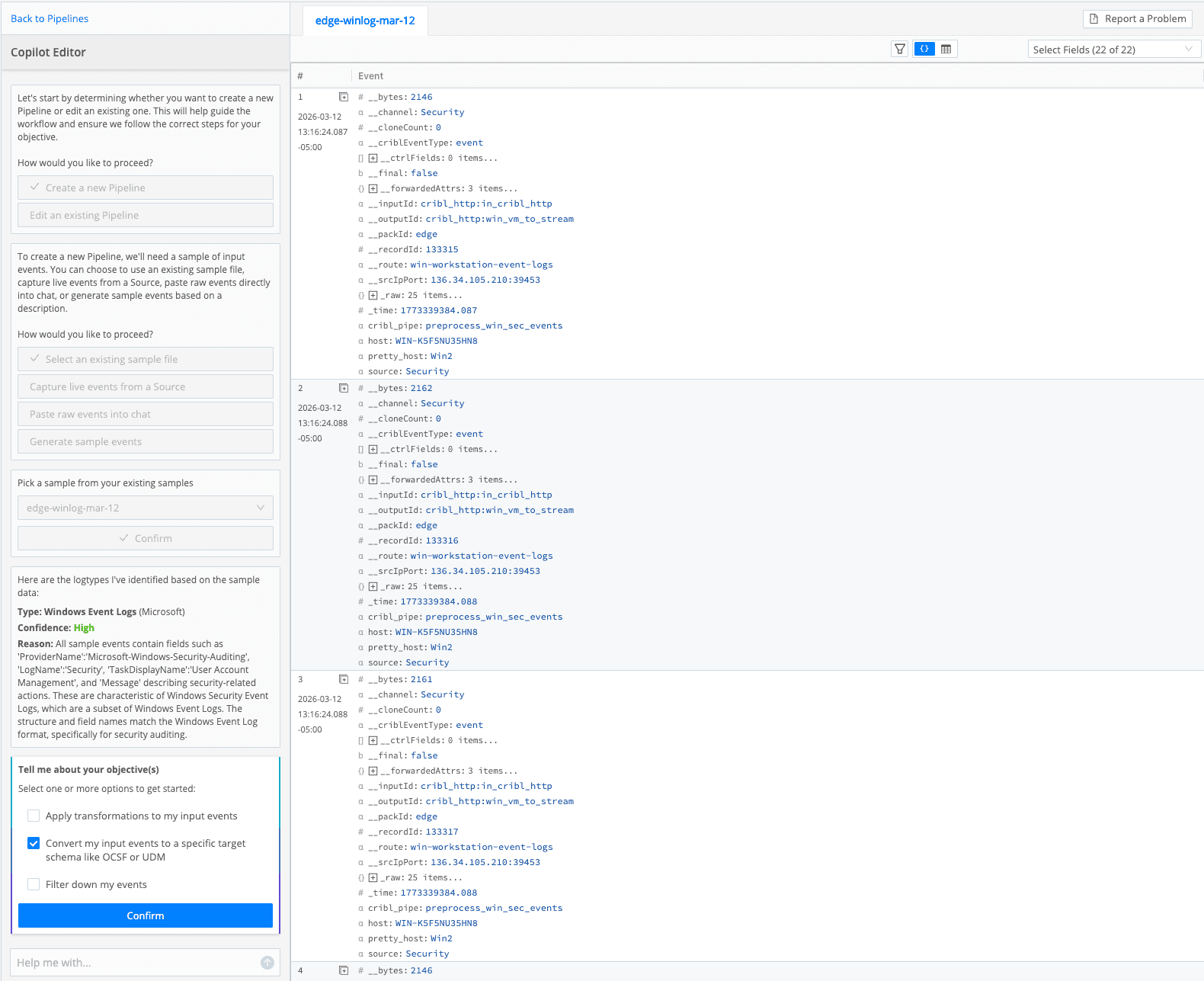
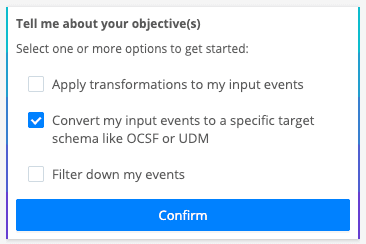
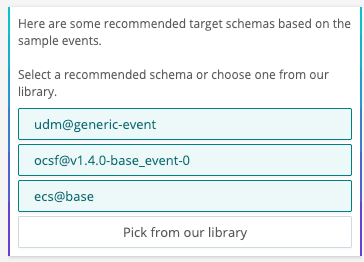
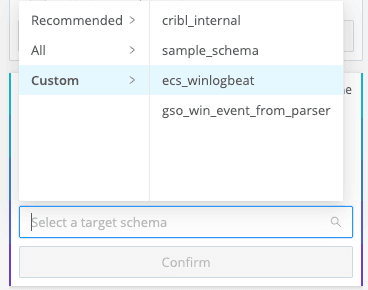
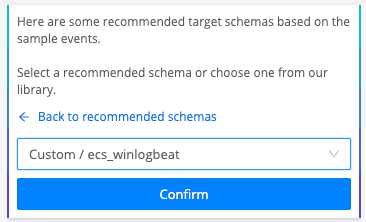
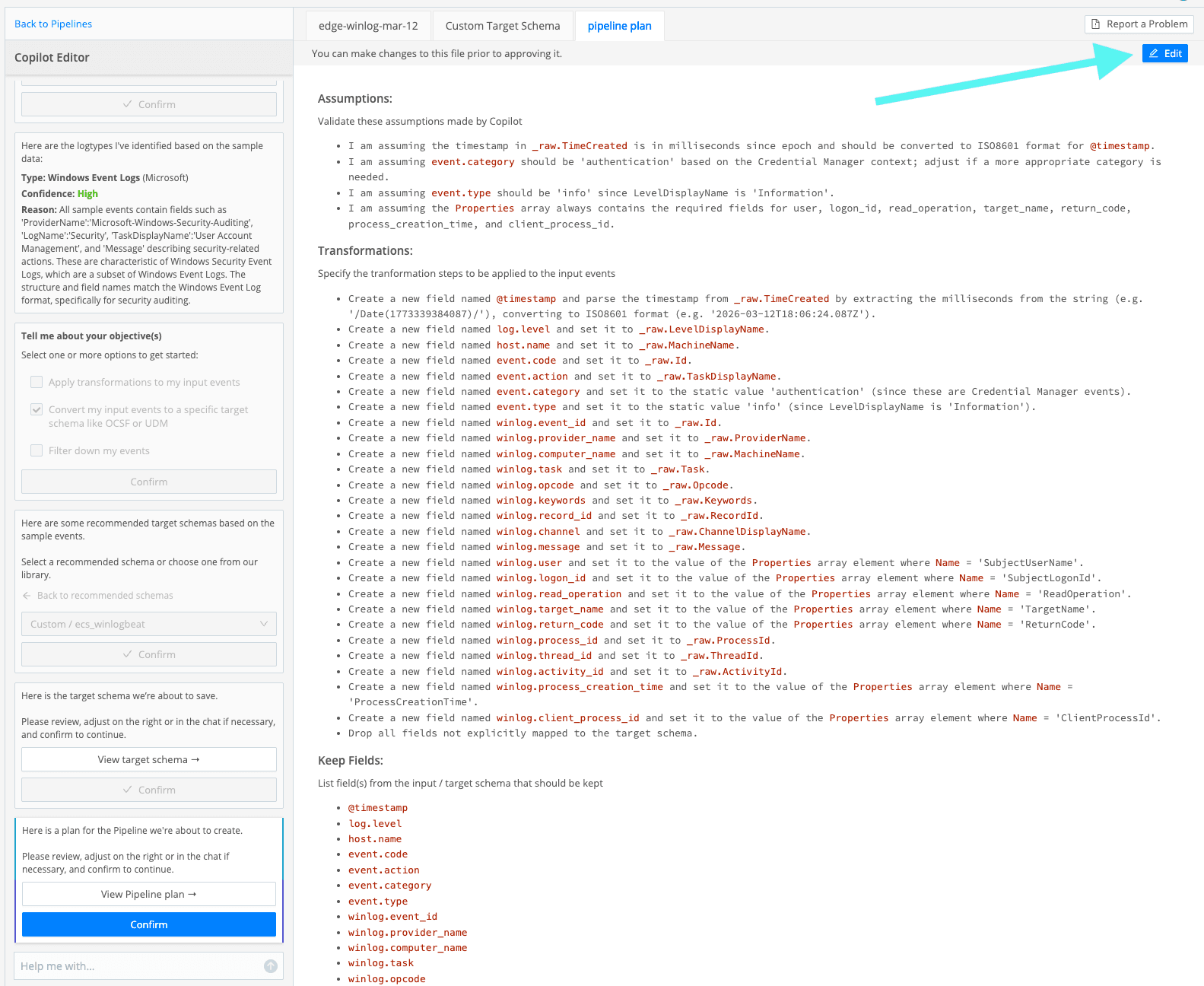
After a review of the pipeline plan and a few confirmations, you will have a Cribl pipeline that you can edit and test against your sample data. Assuming you already have Windows Events being collected by Cribl Edge and flowing into Cribl Stream, getting to this point might only take you 15-30 minutes, depending on the LLM you use and the mode (fast thinking? Pro? Deep Research?) you have selected. You can either edit the pipeline plan or confirm and jump into the pipeline functions.
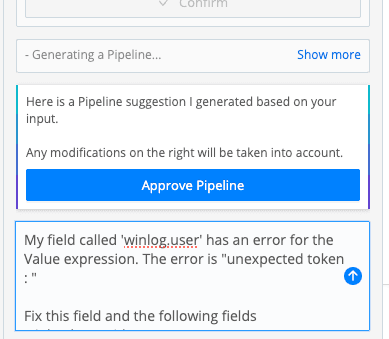
Pro tip #1 — If any fields have an error, you can tell Copilot Editor to fix them instead of trying to learn Java Script on the fly.
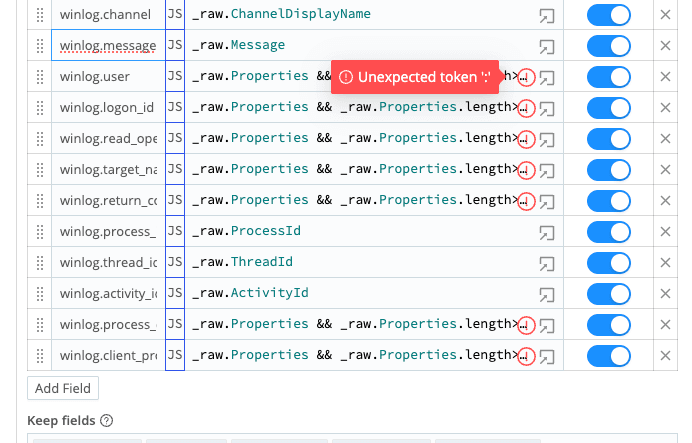
Pro tip #2 — Elastic Common Schema uses period (.) in the field names like ‘event.type’. You will want to wrap your field names with single quotes in the Eval function. This can be a DIY job or a job for Copilot Editor, your choice. Once Copilot fixed the unexpected tokens and wrapped my field names in single quotes, I was ready to review my Event ‘In’ and ‘Out’ to test my pipeline.
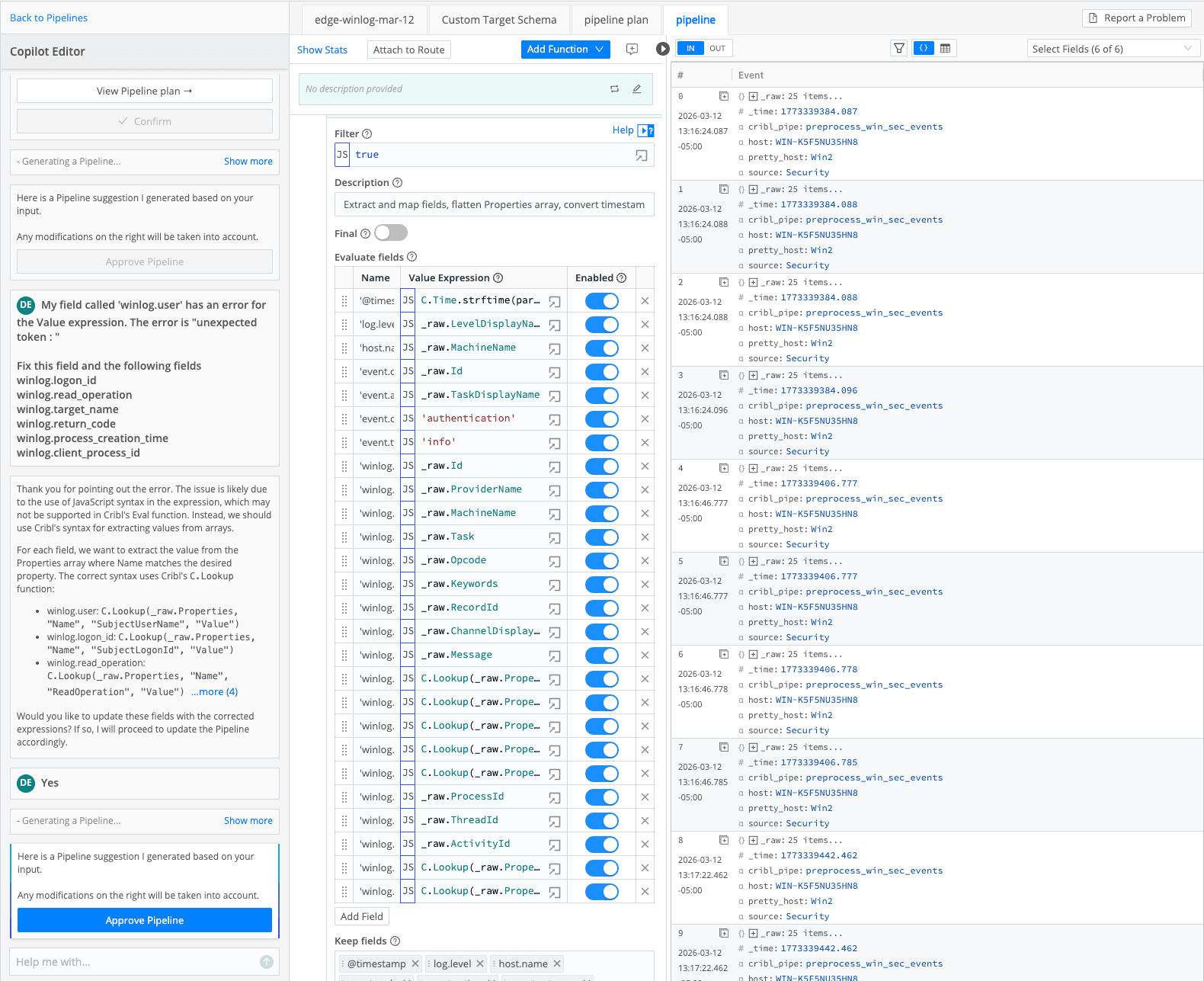
(The whole shebang.)
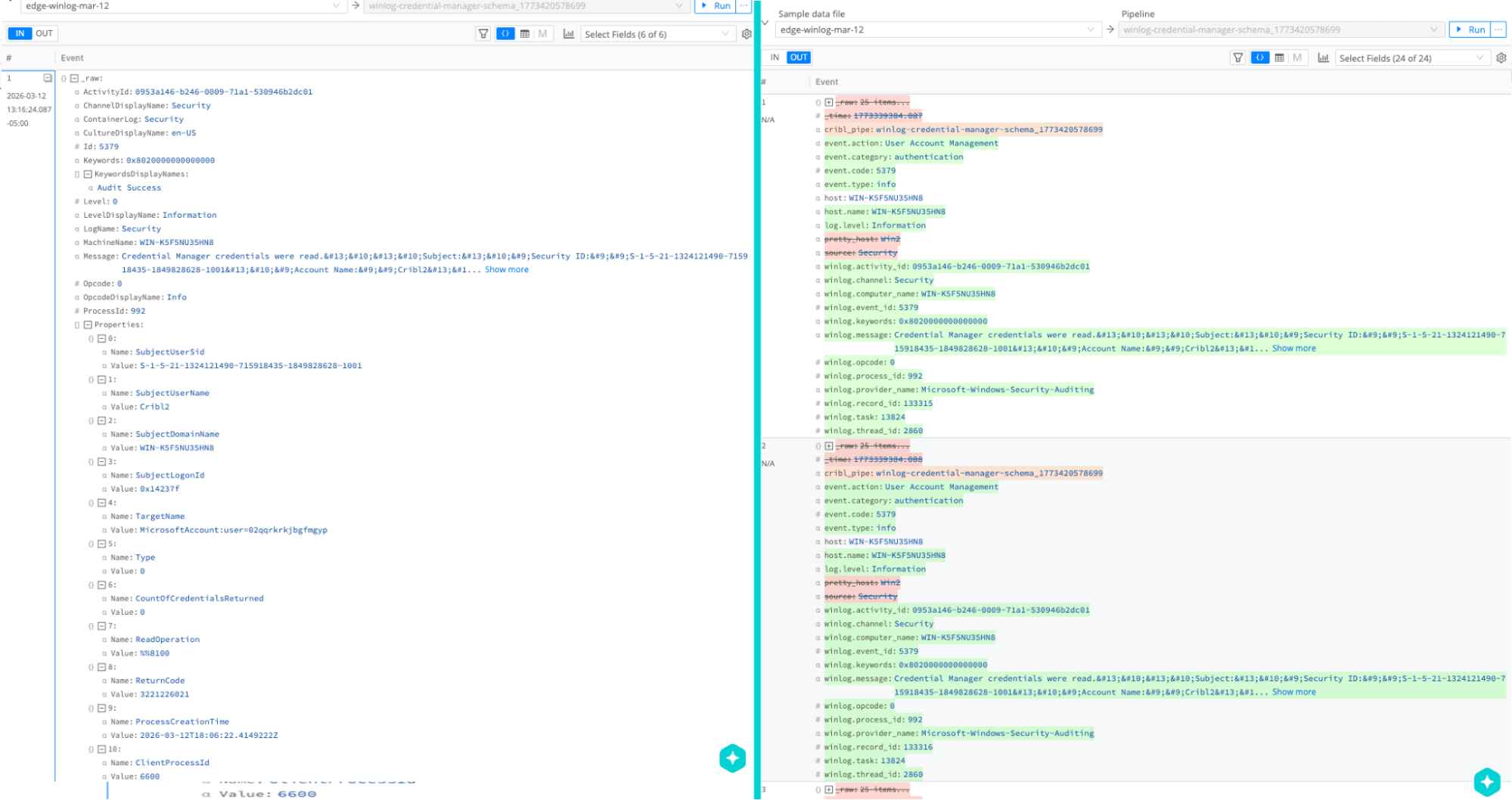
(The In vs. Out — You can see it is much easier to read.)
Here I would make one more suggestion. Use an Eval function to add a data_stream array to your events. This can help you land data into an appropriate data stream for Elastic, which may do some additional parsing for you.
Here is an example where the name is “data_stream” and the value expression is below. This value expression dynamically evaluates the original ‘source’ field in the Windows events to see if it was Security, System, or Application, which sets the ‘dataset.’ It sets type = ‘logs’ and namespace = ‘default’ statically. You have an option to use the Eval function to add a field called _index to your events to land the data in the index you specify.
Value expression
{
type: 'logs',
dataset: (source === 'Security') ? 'windows.security' :
(source === 'System') ? 'windows.system' :
(source === 'Application') ? 'windows.application' : 'windows.other',
namespace: 'default'
}
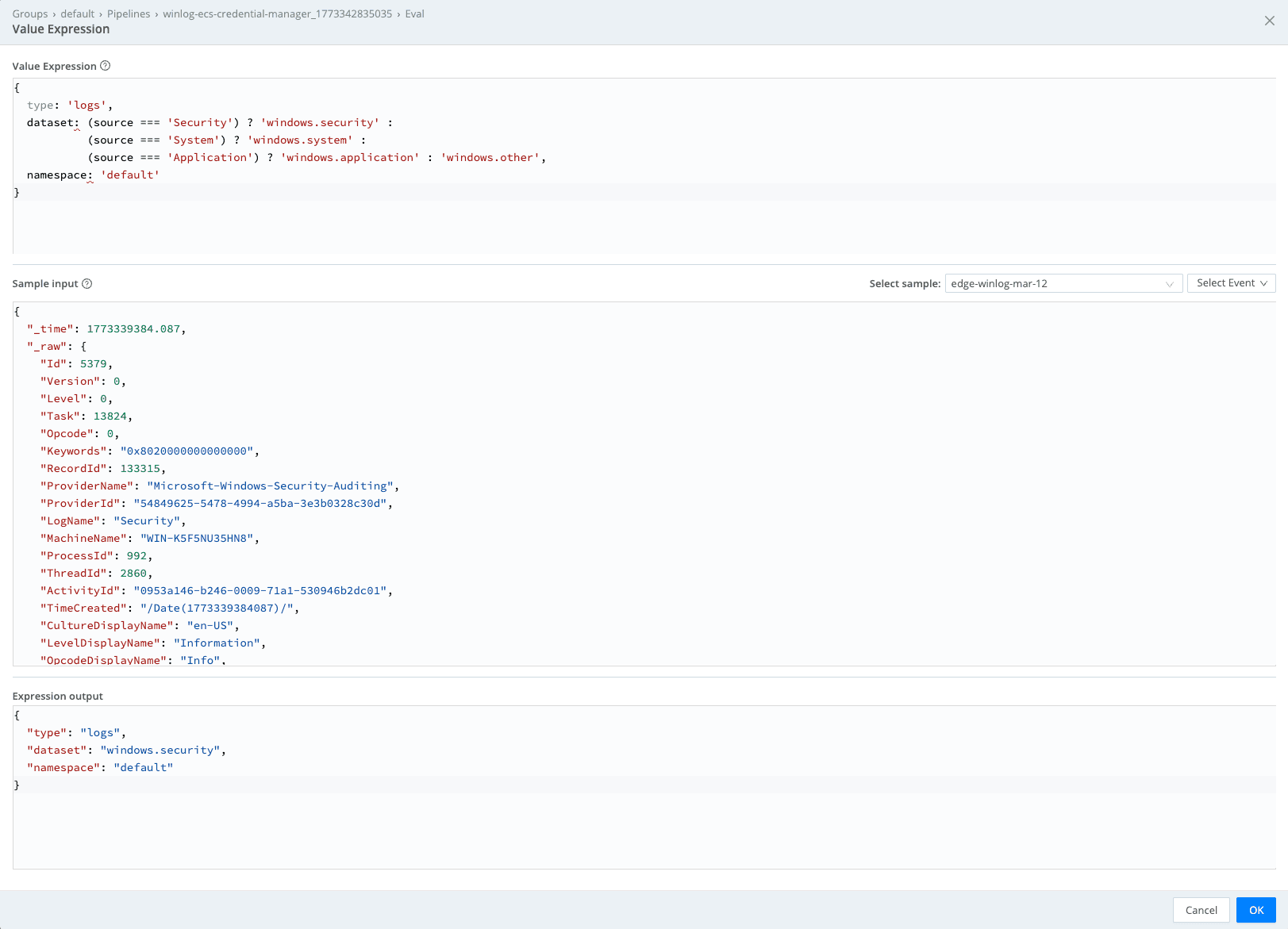

(To see this window, click the “Advanced mode” button in the ‘Value expression’ field.)
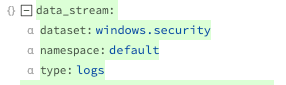
This results in my events having a data_stream array added.
Now it’s time to route your Windows Events through the pipeline that Copilot Editor created and on to either an Elasticsearch or Elastic Cloud destination, and go check the results. You should be able to see which index or datastream the data is landing in, check some of the out-of-the-box dashboards for which of your events are relevant and confirm they are populated, and look at your events in Discover.
Pro tip #3 — When sending to the Elasticsearch destination, there is a required field called “Index or data stream*” which you can set to a constant value or use the fields in your data build. If you set it up like below, it will use the values from your data_stream array and you will see the below results in Elastic.
(set to `${data_stream.type}-${data_stream.dataset}-${data_stream.namespace}`
Make the most of your data_stream arrays.)
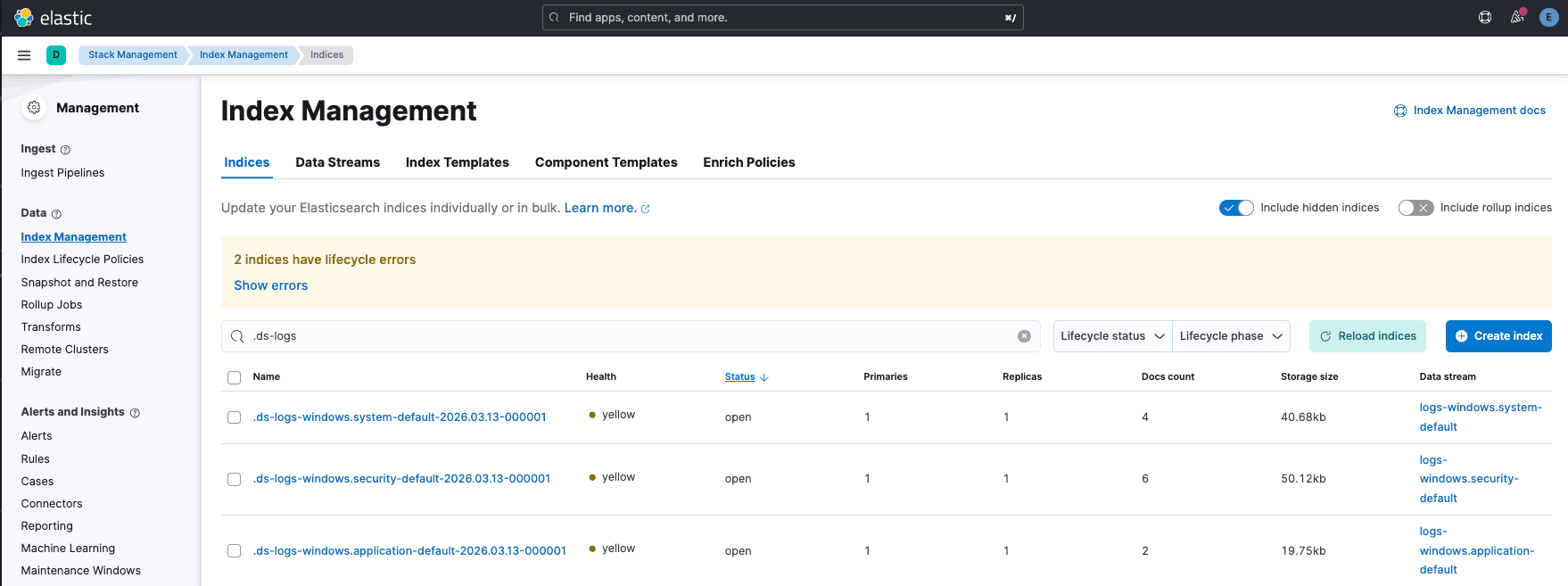
(My data_stream arrays include System, Security, Application events, so I have 3 data streams receiving logs.)
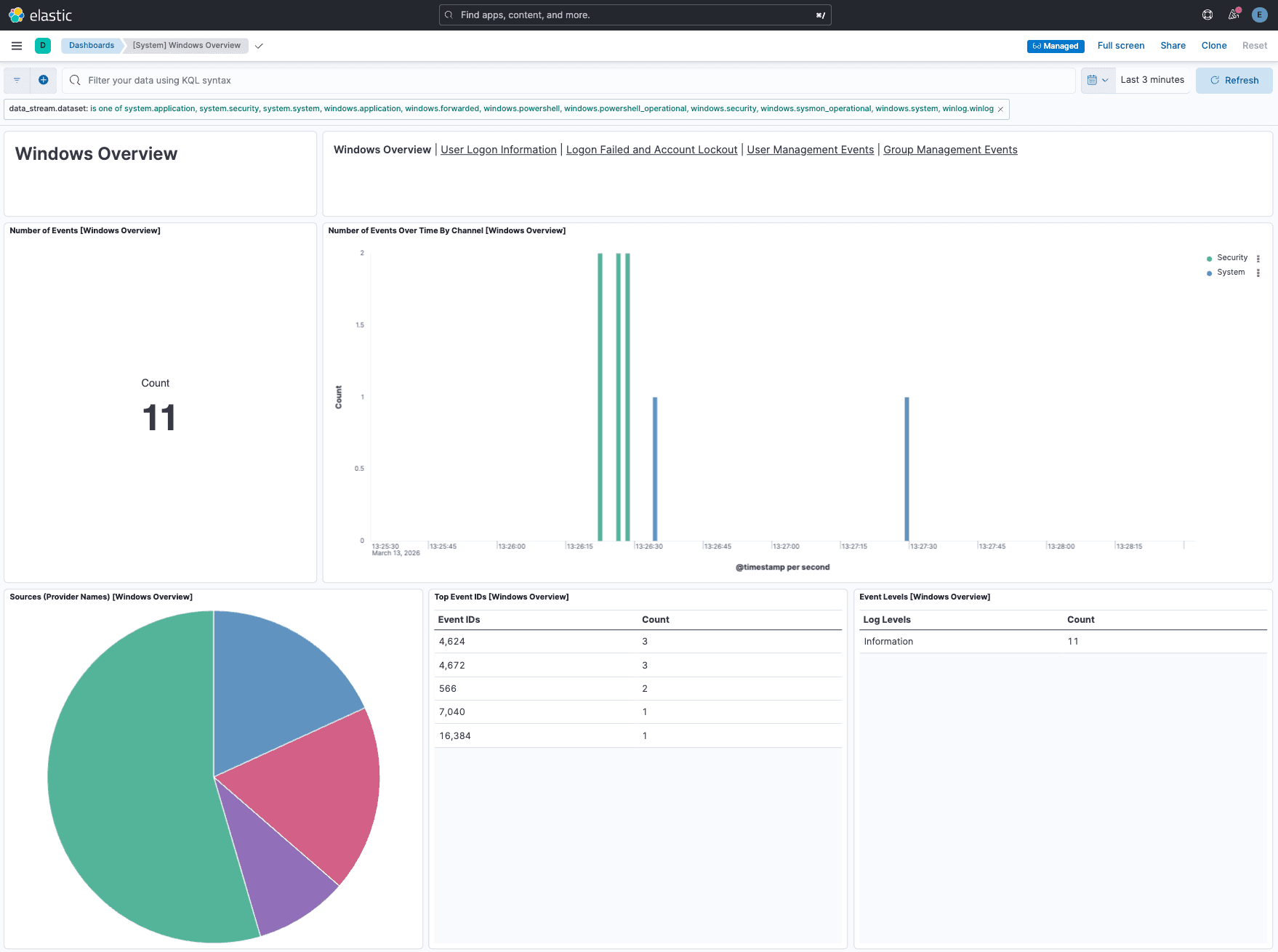
(The dashboard is populating!)
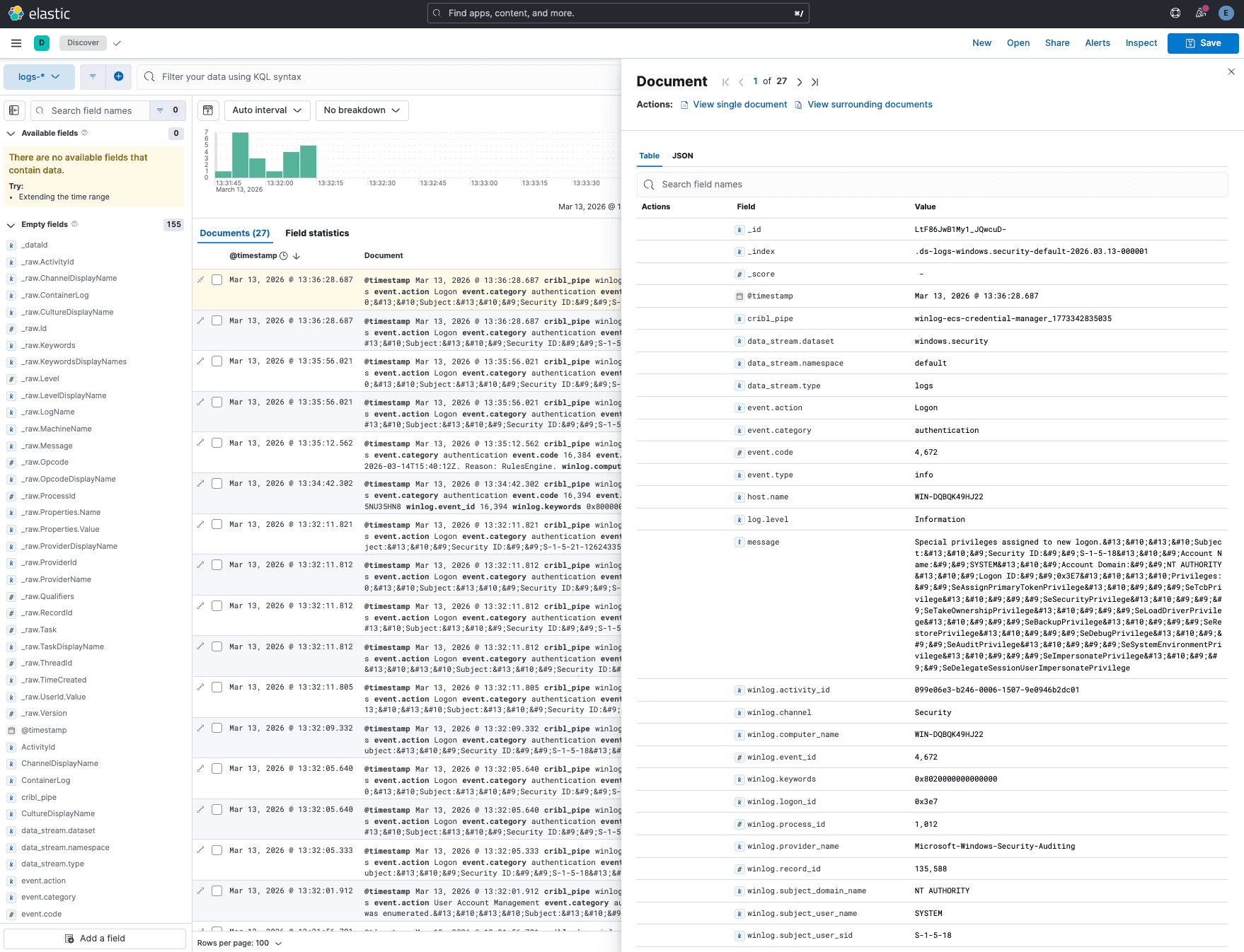
(Discover is populated and my event is mapped to the Elastic Common Schema.)
The flexibility of Cribl Stream will let you start with this concept and do additional operations like removing fields you are not using in alerts and dashboards, sending a full fidelity copy somewhere cheaper to store data (like Cribl Lake), or adding in new fields and enriching your data so it is more valuable than before!
And if you get stuck along the way, just click on the Copilot Chatbot and ask your question.
Additional resources